7 Best Webcams for Working from Home 2026

This post may contain affiliate links. As an Amazon Associate I earn from qualifying purchases. If you choose to make a purchase, I may earn a small commission at no extra cost to you.
Working from home puts your webcam in front of teammates, clients, and interview panels, so soft video, poor framing, or distracting room noise can make calls harder. The right camera should match your desk setup and the way you meet, not just offer the biggest resolution.
Look at resolution, focus, field of view, microphone design, lighting correction, and privacy controls before you choose. The Logitech Brio 4K Webcam leads this group with 4K video, autofocus, adjustable framing, dual noise-canceling microphones, and low-light correction. This guide to the best webcams for working from home in 2026 covers options for flexible framing, easy setup, image adjustments, and certified meeting platforms, so you can choose by the features you will use.
Our Top Webcams Picks

- Resolution: 4K UHD
- Frame rate: Up to 30 fps
- Focus: Autofocus
- Resolution: 2K
- Field of view: 65°, 78°, 95°
- Audio: Dual mics with AI noise cancellation

- Resolution: 1080p
- Focus: HD autofocus
- Field of view: 78° fixed

- Resolution: 4K UHD
- Frame rate: 30 fps
- Focus: Autofocus

- Resolution: 2K
- Frame rate: 30 fps
- Focus: Fixed, 12-40 inches

- Resolution: 1080p
- Frame rate: 30 fps
- Focus: Fixed focus

- Resolution: 1080p
- Audio: Mono noise-reduction mic
- Low-light correction: RightLight 2
More Details on Our Top Picks
Logitech Brio 4K Webcam suits you if you want detailed video and several ways to frame your shot. It records up to 4K at 30 fps, uses autofocus, and offers three diagonal views: 65°, 78°, and 90°.
RightLight 3 adjusts exposure and contrast in glare or backlight. Dual omnidirectional microphones with noise-canceling technology pick up sound from as far as 1.2 meters, and an attachable shade blocks the lens between calls.
The Logi Options+ app gives you zoom, color settings, manual focus, and firmware controls. Optical and infrared sensors support Windows Hello sign-in, which makes Logitech Brio 4K Webcam a flexible pick if you use a compatible Windows computer.
Compared with the Anker PowerConf C200, you get 4K video, digital zoom, and Windows Hello support. If you only need routine calls, the Logitech C920e offers a more focused setup with a fixed 78° view and HD autofocus.
Bottom line: Choose it if you want 4K video, adjustable framing, and tools like digital zoom or Windows Hello. It also suits you if you need dual microphones with noise-canceling technology.
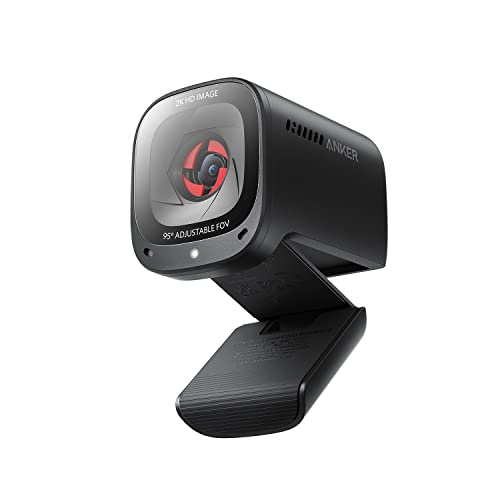
Anker PowerConf C200 Webcam suits you if sharper-than-HD video and adjustable framing matter for your work calls. Its 2K resolution gives you more detail than the 1080p options here, and software lets you switch among 65°, 78°, and 95° views.
That range helps you use a tighter frame for solo calls or show more of your workspace. Low-light correction helps in dim rooms, and the sliding cover blocks the lens when you step away.
Dual microphones with AI noise cancellation help reduce background noise during calls. The camera works with Windows 7 or later and macOS 10.11 or later.
Anker PowerConf C200 Webcam makes the most sense if you want to set your viewing angle in software. The Logitech C920e keeps its view fixed at 78°, while the C200 gives you three choices. Its 18-month warranty adds a little extra peace of mind.
Bottom line: Pick it if you want 2K video and easy control over how much of your room appears on camera. Its three viewing angles make it a strong fit for both solo calls and presentations.
Logitech C920e Webcam is a practical fit if you want clear video for everyday meetings without extra framing choices to manage. It records at 1080p, keeps a fixed 78° view, and uses autofocus to keep you clear as you move.
Two omnidirectional microphones capture your voice from up to one meter away. Automatic light correction helps with uneven room lighting, and the flip-up privacy screen gives you a quick way to cover the lens.
The adjustable clip fits laptops and monitors, and a 1/4-inch thread lets you mount it on a tripod. It works with Windows 11, carries Zoom certification, and supports Microsoft Teams and other popular calling apps.
Logitech C920e Webcam offers a simpler frame than the Anker PowerConf C200, which gives you three software-set viewing angles. Its 1080p resolution also trails the 2K and 4K options here, but autofocus and dual mics make it a capable choice for regular work calls.
Bottom line: Choose it if you want a straightforward webcam for meetings with autofocus, dual microphones, and a physical privacy screen. The fixed 78° view suits a solo desk setup.
VAKUNICE 4K Webcam suits you if you want 4K video and a tripod included for a flexible home setup. It records at 30 fps, and autofocus adjusts as you move or show objects during a call.
Dual built-in microphones pick up your voice and help reduce common background noise. A sliding cover blocks the lens between meetings, and USB plug-and-play setup gets the camera running without extra drivers.
The adjustable tripod and 4.6-foot cable give you more placement options than a webcam that only clips to a monitor. VAKUNICE 4K Webcam works well for calls, classes, interviews, and light streaming.
Like the Logitech Brio 4K, this model offers 4K video at 30 fps with autofocus. The Brio adds selectable viewing angles and noise-canceling microphones, while the VAKUNICE includes its own tripod, so the right fit depends on which features matter more at your desk.
Bottom line: Pick it if you want 4K autofocus and a tripod in the box for more flexible camera placement. It also suits you if you want a plug-and-play setup for calls or classes.
EMEET C100 2K Webcam fits you if you want sharp video with manual image controls for your home office. It records 2K video at 30 fps, and its fixed-focus lens stays sharp from 12 to 40 inches.
The EMEETLINK software lets you adjust brightness, exposure, and saturation. Its 50Hz and 60Hz anti-flicker settings help keep indoor lighting from causing flicker in your video.
A built-in shutter protects the lens, and the metal clip adjusts to different angles. The integrated cable keeps the setup together, while a 1/4-inch thread supports tripod mounting if you supply a tripod.
EMEET C100 2K Webcam uses a single built-in microphone, while models such as the Anker PowerConf C200 have dual mics. Its fixed focus avoids autofocus shifts, but it works best when you stay within the stated focus range.
Bottom line: Choose it if you want to tune brightness, exposure, and color through software. Its fixed-focus lens suits a steady desk position within the 12-to-40-inch range.
NIVEOLI 1080p Webcam suits you if you want a basic Full HD camera with a built-in microphone and privacy cover. It records at 30 fps, and HDR with automatic light correction helps balance dim rooms and backlighting.
Dual digital microphones reduce background noise during calls, so you can start without adding a separate mic. The adjustable clip fits a monitor or laptop, and the 360° rotating head helps you aim the camera.
The built-in cover slides over the lens, and USB 2.0 plug-and-play setup works with Windows, Mac, Linux, and Android. NIVEOLI 1080p Webcam keeps its focus fixed, which suits a steady desk position.
Compared with the Logitech C920e, this model also records 1080p video and uses a physical privacy cover. The C920e adds autofocus and a defined 78° view, while this camera gives you HDR and support for Android as well as desktop systems.
Bottom line: Pick it if you want a simple 1080p webcam with a physical privacy cover and support for several operating systems. Its fixed focus works well for a camera that stays in one position.
Logitech Brio 301 Webcam suits you if you want a compact Full HD camera for regular video meetings. Its 1080p video and RightLight 2 correction help you stay visible when your room lighting is poor.
A mono noise-reduction microphone helps limit background sound, and the rotating shutter blocks the lens when you finish a call. The Logi Tune app lets you adjust color and image quality.
The webcam carries certification for Zoom, Microsoft Teams, and Google Meet. Its body uses at least 48% post-consumer recycled plastic, which gives you a material detail that sets it apart from the other picks.
Logitech Brio 301 Webcam keeps its feature set focused on meetings, while the Logitech Brio 4K adds autofocus, selectable viewing angles, and dual microphones. The Brio 301 tops out at 1080p, so choose it for certified meeting support and simple image controls rather than higher resolution.
Bottom line: Choose it if you want a Full HD webcam with certified support for common meeting apps and a rotating privacy shutter. It also suits you if recycled plastic matters in your choice.
Factors to Consider When Choosing Webcams for Working from Home
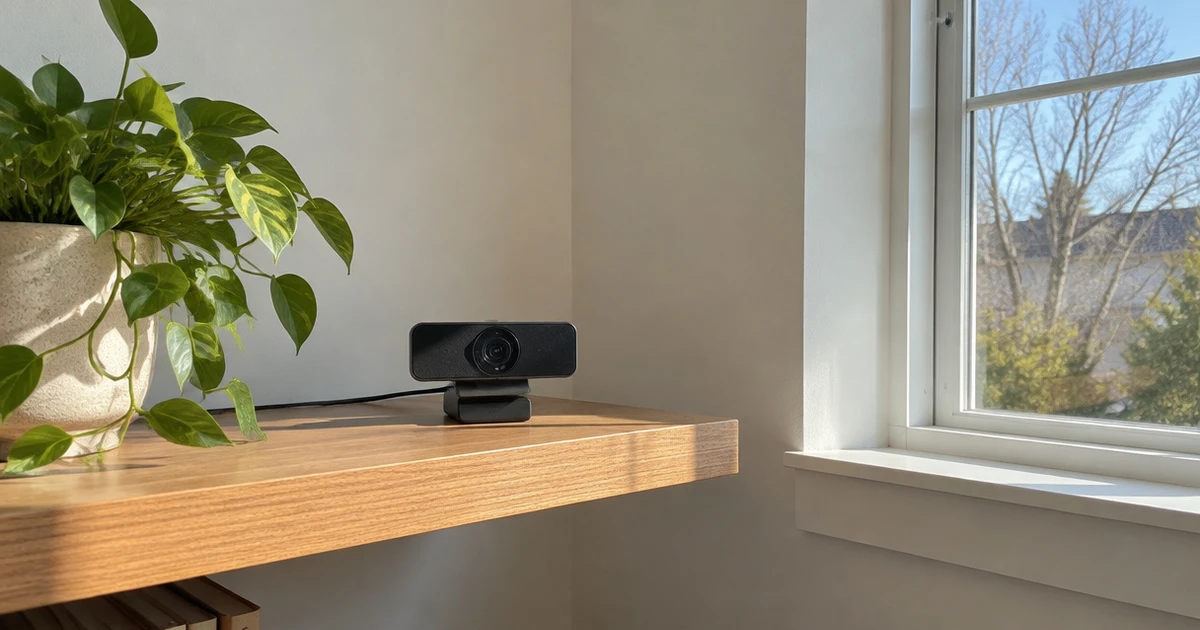
Start with your daily call setup. Think about how far you sit from the camera, how much of your room you want in frame, and whether you need built-in audio or privacy controls.
- Match the resolution to your usual calls and internet connection.
- Choose a field of view that suits solo calls or group meetings.
- Check focus, audio, lighting controls, and privacy features.
Resolution and Frame Rate
Choose a resolution that fits your meetings and computer. A 1080p webcam works for routine calls, while 2K or 4K offers more image detail if your computer, meeting app, and internet connection can handle it. A sharp image still depends on good lighting and camera placement.
Frame rate affects how smooth movement looks; 30 frames per second suits a seated call. Check the listed resolution and frame rate together so you know what the camera can deliver at your chosen setting.
| Resolution | Useful for | Check |
|---|---|---|
| 1080p | Routine meetings | Light and camera placement |
| 2K | More image detail | App and computer support |
| 4K | Higher image detail | Connection and frame rate |
Field of View
Field of view controls how much of your room the camera shows. A narrow view keeps the frame focused on you, while a wider view can include another person or more of a shared work area. That wider frame may also reveal background clutter, so think about what sits around your desk.
Some webcams offer angle choices such as 65, 78, or 95 degrees. Check whether the number describes a diagonal view, and set the camera near eye level before deciding you need a wider angle.
Focus and Working Distance
Autofocus adjusts as you move closer to or farther from the camera. It can help if you stand to present or hold an item up to the lens. Fixed focus suits a seated worker who stays in roughly the same spot.
Check any stated working-distance range against where you sit, especially if your desk sits far from your screen. If you move around during calls, autofocus gives you more flexibility.
If you tend to stay put, fixed focus can keep setup simple. Either way, place the lens close to eye level for a natural angle.
Microphone Quality
Built-in microphones save desk space, but the number of mics alone does not tell you how well a webcam will handle room noise. Look for noise reduction if you take calls near a keyboard, fan, or shared space. Dual microphones give the camera more than one mic to work with, while a mono mic keeps the audio setup simple.
If you take frequent meetings, check how your voice sounds from your usual seat and keep the camera close enough to pick up speech. If you already use a headset, treat webcam audio as a backup.
Lighting and Image Controls
Video quality depends on the light around you as well as the camera. If a window sits behind you, your face can look dark; put your main light in front of you or slightly to one side. Low-light correction, HDR, and automatic exposure can help a webcam adjust as room brightness changes.
Manual brightness or exposure controls give you more say if automatic adjustments look uneven. Check the camera preview during the hours you usually meet. If your room stays bright, automatic correction may be enough; if light changes often, extra image controls can help you adjust the picture.
Privacy, Setup, and Compatibility
A physical shutter blocks the lens between calls. Sliding covers and rotating shutters both serve this purpose, so choose one you can close without removing the camera. Check how the webcam attaches to your screen or tripod, and confirm that its cable reaches your setup.
USB plug-and-play can simplify first use, while software controls may offer extra image settings. Check compatibility with your computer and meeting apps. A lens cover does not mute the microphone, so use your meeting app’s audio controls when you want to stop transmitting sound.
Which Webcam Fits Your Workday?
Choose the Logitech Brio 4K Webcam for 4K video, autofocus, flexible framing, and dual noise-canceling mics. The Anker PowerConf C200 gives you 2K video with three framing angles, while the Logitech C920e keeps work calls simple with 1080p video and a flip-up privacy screen. For a tripod-ready 4K setup, pick the VAKUNICE 4K Webcam; choose the EMEET C100 if you want brightness and exposure controls.
The NIVEOLI 1080p Webcam suits a simple setup with HDR and a sliding cover. The Logitech Brio 301 fits you if certified meeting platforms matter, along with a rotating shutter and at least 48% recycled plastic. Match your choice to the calls you take most and the features you will use.
Frequently Asked Questions
Do you need a 4K webcam for work calls?
Most people can handle routine meetings with a 1080p webcam. Higher resolution can show more image detail, but your computer, meeting app, and internet connection also affect the video you send. Good light and a camera placed near eye level can matter just as much as choosing a higher resolution.
Is autofocus better than fixed focus?
Autofocus suits you if you move during calls or step closer to the camera to show something. Fixed focus works well if you sit in one place and keep a steady distance from the lens. Check the camera’s working range before you buy, especially if you sit far from your screen.
How wide should a webcam’s field of view be?
A narrower view usually keeps a solo call focused on you and your immediate background. A wider angle can help if you share the frame with another person or want to show more of your work area. Think about your room layout and background before choosing an angle.
Can a webcam’s built-in microphone handle meetings?
A built-in mic can work for everyday calls, especially if you sit close to the camera in a quiet room. Noise reduction may help in a busier space. If you already use a headset or take calls in a shared room, compare its sound with the webcam’s mic before relying on it.
How can you protect your privacy between calls?
Choose a webcam with a physical shutter or cover that blocks the lens, then close it when you finish a call. A lens cover does not mute the microphone, so mute your audio through the meeting app or computer too. Check that the cover is easy to reach from your desk.