8 Best Wireless Keyboards for Home Office Setups 2026

This post may contain affiliate links. As an Amazon Associate I earn from qualifying purchases. If you choose to make a purchase, I may earn a small commission at no extra cost to you.
A home office keyboard can shape how comfortable and focused your workday feels. A full-size layout gives you a number pad, while a compact set can leave more room for a mouse and papers. You also need a connection that suits your desk, keys that do not distract others, and a mouse that feels right in your hand.
The best wireless keyboards for home office setups in 2026 balance those daily needs with useful extras such as tilt legs, wrist support, shortcut keys, or rechargeable power. This guide compares options for different routines, from long work sessions to evening typing, and names the Logitech MK270 Wireless Keyboard and Mouse as the top overall pick.
Our Top Wireless Keyboard and Mouse Combo Picks

Logitech MK270 Wireless Keyboard and Mouse
- Wireless connection: USB receiver, up to 33 ft
- Keyboard layout: Full-size with number pad
- Ergonomic features: Adjustable tilt legs

EDJO Wireless Keyboard and Mouse
- Wireless connection: 2.4GHz, up to 33 ft
- Keyboard layout: Full-size with number pad
- Ergonomic features: Adjustable tilt legs

- Wireless connection: 2.4GHz, up to 33 ft
- Keyboard layout: Full-size QWERTY
- Ergonomic features: Wave keys, memory foam rest

Trueque Backlit Keyboard Combo
- Wireless connection: 2.4GHz, up to 33 ft
- Keyboard layout: Full-size, Mac and Windows
- Ergonomic features: Detachable magnetic wrist rest

- Wireless connection: USB receiver, up to 33 ft
- Ergonomic features: Curved key surface
- Typing noise: Quiet keys and mouse

Trueque Ergonomic Keyboard Combo
- Wireless connection: 2.4GHz, one USB receiver
- Keyboard layout: Full-size with number pad
- Ergonomic features: Built-in palm rest, tilt legs

- Wireless connection: 2.4GHz, up to 33 ft
- Keyboard layout: Full-size with number pad
- Ergonomic features: Ergonomic mouse

RECCAZR Wireless Keyboard Combo
- Wireless connection: Nano receiver, up to 33 ft
- Keyboard layout: Full-size with number pad
- Ergonomic features: Adjustable tilt legs
More Details on Our Top Picks
The Logitech MK270 Wireless Keyboard and Mouse suits you if you want a familiar full-size layout and a combo with long battery life. Its low-profile keys stay quiet, and the keyboard includes a number pad, arrow keys, and full-size function keys.
The USB receiver connects from up to 33 feet away. You also get eight multimedia keys for quick access to common tasks, plus tilt legs that let you adjust the keyboard’s height.
The keyboard can run for up to 36 months on its batteries, while the mouse can last up to 12 months. Both have on/off switches, and the keyboard has a spill-resistant design, though that does not make it waterproof.
The compact mouse works for left- or right-handed use. If you want a shaped, curved layout or a wrist rest, other picks here offer those features; the MK270 focuses on practical basics. Its keyboard and mouse also use post-consumer recycled plastic.
Bottom line: Choose the Logitech MK270 if you want a straightforward full-size combo with long battery life and a spill-resistant keyboard.
The EDJO Wireless Keyboard and Mouse works well for you if quiet typing and fewer battery changes top your list. Its full-size keyboard has a number pad and 12 multimedia shortcuts, while soft membrane keys keep typing quiet.
The mouse has a contoured shape and silent clicks. You can switch its tracking speed to 1600 DPI, and the keyboard’s tilt legs let you adjust its height.
The combo uses one receiver and connects from up to 33 feet away. Both devices enter sleep mode after 10 minutes without activity, and the keyboard uses an AAA battery while the mouse takes an AA battery.
EDJO lists battery life of up to 365 days for the keyboard and mouse. The Logitech MK270 also offers long battery life, but its stated keyboard and mouse runtimes differ. Choose the EDJO if you prefer one shared maximum runtime and a quiet mouse.
Bottom line: Pick the EDJO if you want quiet clicks, a number pad, and a long stated battery runtime.
The EAYBLLY Wave Keyboard Combo gives you a full-size layout with an arched key arrangement and a thick memory foam palm rest. That setup suits long typing sessions if you want more wrist support than a basic keyboard offers.
A built-in holder fits a phone or mini tablet up to 7.28 inches. You can keep a screen in view during calls or while you work, without adding a separate stand to your desk.
The keyboard and mouse share a receiver and connect from up to 33 feet away. Both run quietly, and the mouse offers three DPI settings: 800, 1200, and 1600. An included USB-C adapter helps you connect to Type-C laptops.
The Logitech MK270 offers longer listed keyboard battery life, while this EAYBLLY adds the wrist rest and device holder. The mouse and keyboard enter sleep mode after 10 minutes of inactivity.
Bottom line: Choose the EAYBLLY if you want a built-in wrist rest and a spot for your phone or mini tablet.
The Trueque Backlit Keyboard Combo suits you if you often work in a dim room and want light-up keys. You can switch among seven keyboard backlight colors, while the mouse cycles through RGB colors.
Round raised keys give this full-size keyboard a retro look. It also has spill-resistant technology and a detachable wrist rest that attaches with magnets. The rest has a firm ABS surface that you can wipe clean.
The rechargeable keyboard and mouse share one receiver and connect from up to 33 feet away. Auto-sleep and on/off switches help conserve power, and a USB-C cable charges the devices.
The dual-system layout works with Mac and Windows, though some keyboard shortcuts do not work on Mac. If you want a more traditional office look or quiet typing details, other picks may suit you better; this one puts backlighting and a magnetic rest first.
Bottom line: Pick the Trueque if you want backlit keys, a rechargeable mouse, and a magnetic wrist rest for a dim workspace.
The RECCAZR Curved Keyboard Combo is a good fit if you prefer a curved key layout and want quiet typing at home. Its membrane keys sit across a curved surface, and the keyboard has front and back tilt legs for more typing angle options.
The mouse also clicks quietly and has a symmetrical shape for either hand. You can choose among 800, 1200, and 1600 DPI settings for different tracking speeds.
One USB receiver connects both devices, with a wireless range up to 33 feet. The keyboard includes nine shortcut keys, and you can use the keyboard and mouse separately if you prefer.
The Logitech MK270 gives you a number pad and longer stated battery life, while this RECCAZR focuses on its curved layout and quiet mouse. Its avocado-green finish also makes it a more colorful desk choice. A one-year warranty covers the combo.
Bottom line: Choose the RECCAZR if you want a curved keyboard layout, adjustable tilt, and quiet clicks from the mouse.
The Trueque Ergonomic Keyboard Combo gives you a full-size keyboard with a built-in palm rest and a slot for your phone or small tablet. It suits a desk where you want your screen and everyday typing tools close at hand.
Common hotkeys give you quick access to media, volume, and the calculator. The six-button mouse has three tracking speeds and forward and back buttons for web browsing.
A single 2.4GHz receiver connects the keyboard and mouse. Both devices enter sleep mode when idle and wake with a key press or mouse click. The keyboard’s adjustable tilt legs add another way to set up your typing position.
The EAYBLLY Wave Keyboard Combo also has a device holder, but it adds a memory foam rest and curved keys. This Trueque keeps things simpler, with a palm rest and useful mouse buttons. It comes with a two-year warranty.
Bottom line: Pick the Trueque if you want a full-size keyboard with a palm rest and a built-in place for your phone.
The Nowlike Retro Keyboard Combo stands out if you want round, typewriter-style keys in a full-size layout. It includes a number pad and 13 hotkeys, so you can keep the retro look without giving up common shortcuts.
The keycaps resist fading and give you tactile feedback as you type. An ergonomic mouse comes with the keyboard, and the combo uses one receiver for a plug-and-play setup.
A USB-C adapter lets you connect to Type-C devices and mobile phones. The keyboard and mouse also use power-saving modes, and AA batteries come preinstalled.
Some hotkeys do not work on Mac, though the main functions still work. The Trueque Backlit Keyboard Combo adds lighting and a detachable wrist rest, while this Nowlike focuses on round keys and a blue finish. A one-year warranty covers it.
Bottom line: Choose the Nowlike if you want round retro keys, a number pad, and an adapter for Type-C devices.
The RECCAZR Wireless Keyboard Combo suits you if you want a quiet full-size set in avocado green. Its keyboard has a number pad and 12 multimedia shortcuts, while the mouse offers three DPI settings for different tracking speeds.
The keyboard has adjustable tilt legs, and both devices use quiet designs for home or office work. One nano receiver connects the set, and the wireless range reaches up to 33 feet.
An auto-sleep mode helps conserve power when you stop using the keyboard and mouse. You can wake them with a key press, and you do not need to install software to get started.
The curved RECCAZR model offers a shaped key layout and nine shortcuts, while this version gives you a standard full-size layout and more multimedia keys. Its symmetrical mouse has a compact, contoured shape. A one-year warranty covers the combo.
Bottom line: Pick this RECCAZR if you want a quiet full-size keyboard with a number pad and a matching mouse in avocado green.
Factors to Consider When Choosing Wireless Keyboards for Home Office Setups
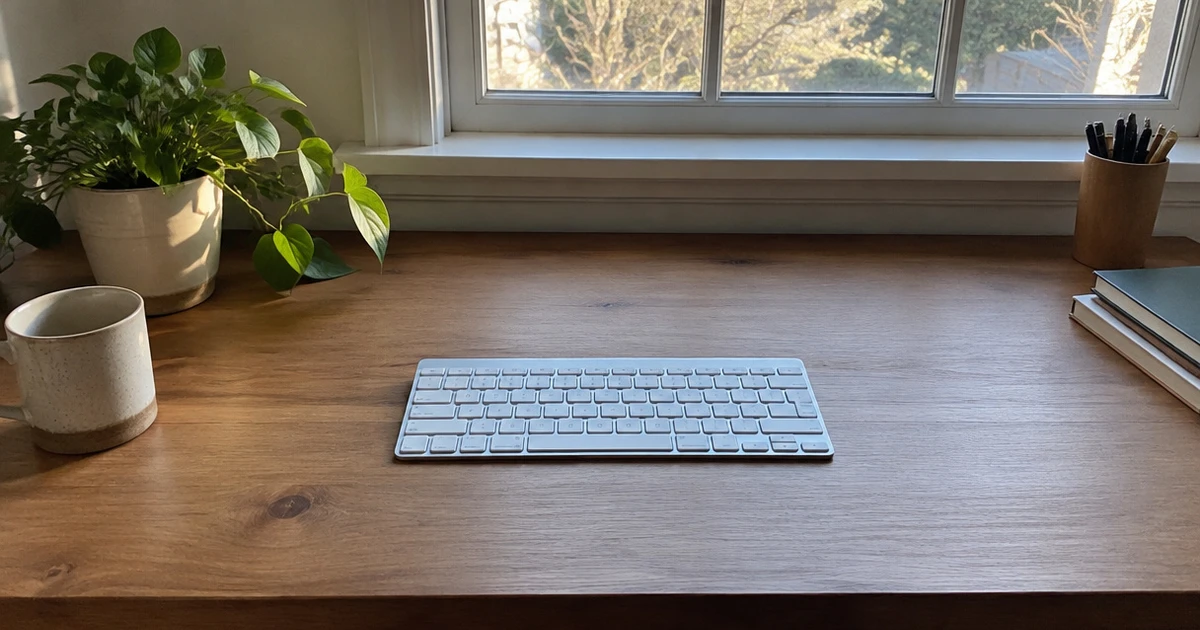
Your keyboard should fit your routine, your desk, and the way you type. Check the layout, connection, comfort features, and power source before you choose a combo, then focus on the extras you will use often.
Layout and Desk Space
Start with the layout you use most. A full-size keyboard gives you a number pad for entering figures, while a smaller layout can free space beside it for a mouse or notebook.
If you work with spreadsheets, keep the number pad high on your list. If your desk feels crowded, measure the open area before you choose.
Check how much room the mouse needs to move, too. This table shows common layout trade-offs, not a quality ranking. Pick the format that leaves your hands in a natural position and keeps the tools you use within easy reach.
| Layout | Useful when | Desk effect |
|---|---|---|
| Full-size with number pad | You enter figures often | Takes more side-to-side space |
| Compact | You need more open room | Leaves more room for a mouse |
Connection and Range
Wireless combos can connect through a USB receiver or a 2.4GHz link. A receiver needs an open USB port, so check your computer before you buy. If you switch between computers, look at how easily you can move the receiver and reconnect the keyboard and mouse.
Some combos list a range of up to 33 feet, which gives you room to sit back from your computer. Treat that number as a maximum rather than a reason to place the receiver anywhere.
For a fixed desk, a receiver that can stay plugged in may suit your routine. For a shared workspace, choose a setup you can pack and reconnect without hassle.
Comfort Features
Think about how your hands rest during a normal work session. Tilt legs let you change the keyboard angle, while a palm rest gives your hands somewhere to rest between bursts of typing. Wave-shaped or curved keys change the feel and shape of the typing surface, so consider whether that style seems comfortable for your hands.
Match the features to your needs instead of choosing the longest feature list. You might focus on:
- A wrist rest if you want a place to rest your palms during pauses.
- Tilt legs if you want to adjust the keyboard angle.
- A curved or wave-style surface if you prefer shaped key rows.
Keep your wrists relaxed as you reach the keys. A different shape may take time to get used to, so choose one that feels natural during a quick typing check.
Typing Feel and Shortcuts
Key feel matters if you type for much of the day. Quiet keys can help limit typing noise in a shared room or during calls, while low-profile keys may suit you if you prefer a flatter feel. If you can test a keyboard before buying, type a few lines and try the keys you use most.
Shortcut and multimedia keys can save time if you often adjust volume or use media controls at your desk. Count only the shortcuts that match your routine. A large group of extra keys adds little value if you rarely use them, so check their placement and make sure they do not crowd the keys you type with every day.
Power, Mouse, and Compatibility
Check how the keyboard and mouse get power. Some combos use AA batteries, while others recharge; sleep modes can also reduce power use when you step away.
Choose the option that fits how often you want to handle charging or battery changes. If your workdays run long, pay attention to the power approach and the controls that help conserve it.
The mouse deserves the same attention as the keyboard. Check its shape, button layout, and adjustable speed settings, especially if you use it for long stretches.
Then confirm that the combo works with your computer’s operating system. Compatibility with Windows, Mac, Linux, or Chrome can matter if you use more than one computer at home.
Choosing a Keyboard Combo for Your Workday
Choose the Logitech MK270 Wireless Keyboard and Mouse if you want a straightforward full-size set with a compact ambidextrous mouse. The EDJO Wireless Keyboard and Mouse suits your extended-runtime priority, while the EAYBLLY Wave Keyboard Combo stands out for its wave keys and memory foam rest.
Pick the Trueque Backlit Keyboard Combo for evening work, the RECCAZR Curved Keyboard Combo for its curved key surface, or the Trueque Ergonomic Keyboard Combo if its palm rest and single USB receiver fit your desk. The Nowlike Retro Keyboard Combo adds retro styling and 13 hotkeys. The RECCAZR Wireless Keyboard Combo rounds out the list as the green-office pick.
Frequently Asked Questions
Do wireless keyboards need a USB port?
Most wireless keyboard and mouse combos that use a USB receiver need an open USB port. Check that your computer has a compatible port before you choose one, especially if you already connect several desk devices. A single receiver can keep your setup simple.
How far can you sit from a wireless keyboard?
Some combos list a wireless range of up to 33 feet, but your usual desk distance matters more than the maximum. Check the stated range and place the receiver where you can reach it. Keep your keyboard close enough that you can type comfortably without stretching.
Are quiet wireless keyboards silent?
Quiet keys still make some sound as you type, so do not expect a completely silent keyboard. If you share a room or take calls nearby, look for quiet keys and test the sound if you can. Your typing speed and the surface beneath the keyboard can also affect the noise you hear.
Should you choose a full-size wireless keyboard?
A full-size keyboard can suit you if you use a number pad for figures or prefer a familiar layout. It takes more side-to-side desk space than a compact format. Measure the space you have and leave enough room for the mouse to move without bumping into other desk items.
Is a rechargeable or battery-powered combo better?
The right power source depends on how you prefer to maintain your desk gear. Rechargeable models need charging, while battery-powered options need battery changes. Sleep modes can cut power use when you step away. Check the power setup before buying and choose the routine that feels easiest to manage.